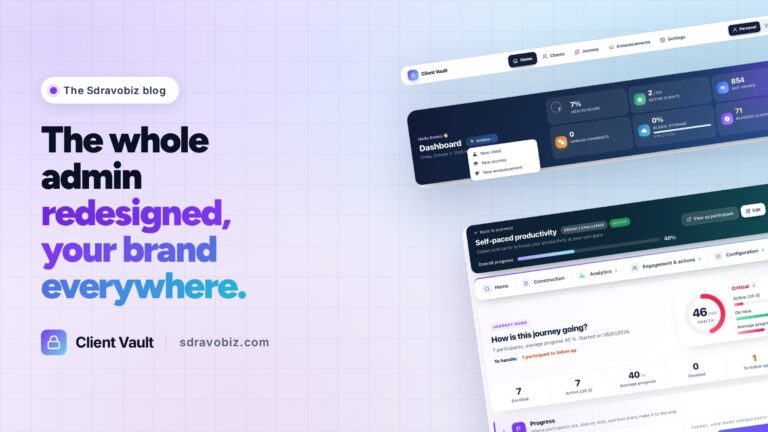



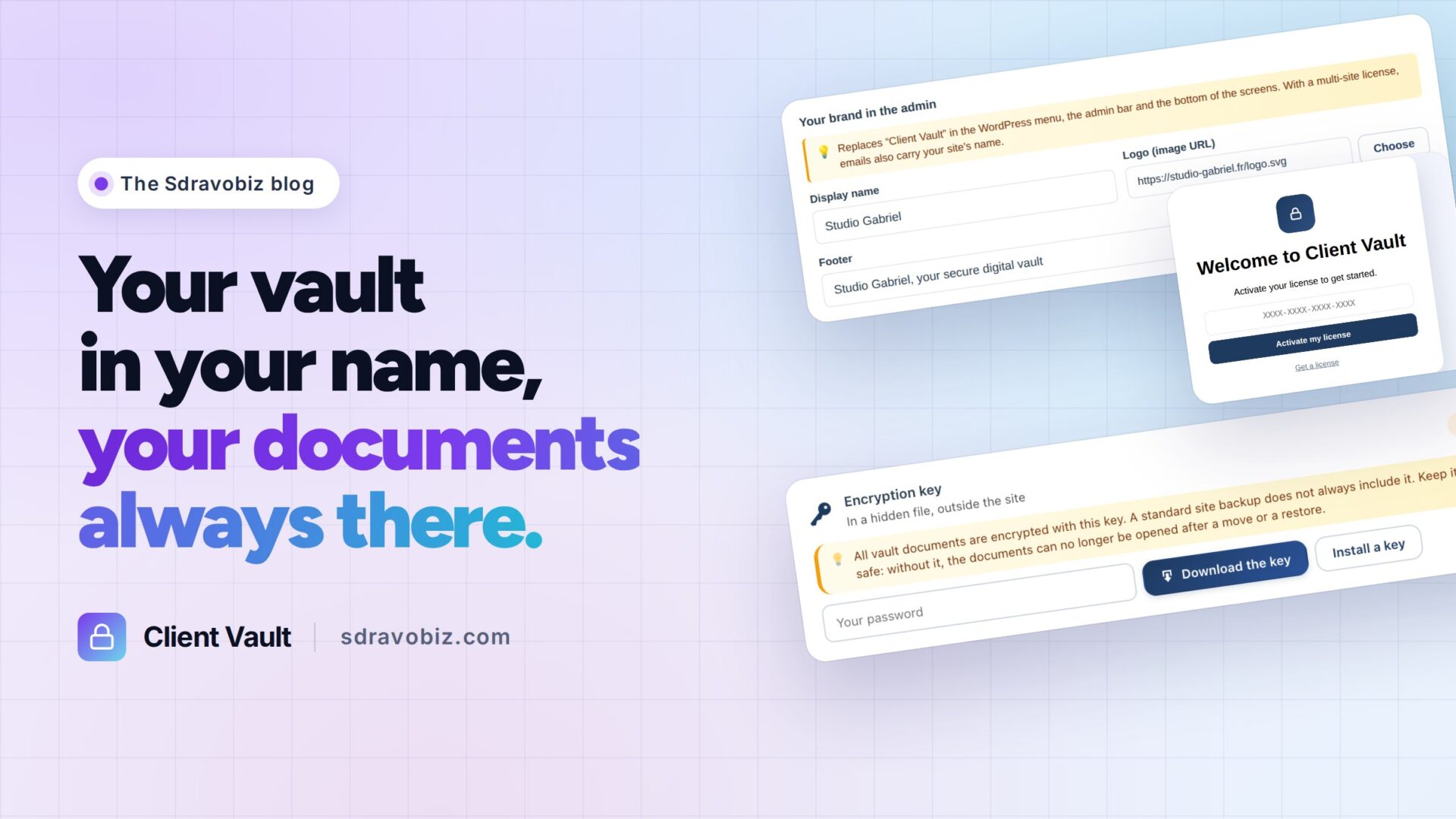
Your client logs in to their WordPress. In the menu, they see your name and your logo. Not mine.
That’s the first thing Client Vault 20.36 changes. Three other new features come with it, all designed to make your life easier.
Client Vault is my secure digital vault for WordPress. Your clients find their documents, their records and their journeys there. Everything is encrypted and stays on your own server.
October 1 update: Client Vault 20.36.10
Thanks to Teddy for his feedback. What he saw came from a specific server configuration. We took the opportunity to review the whole plugin.
- Vault agenda: your clients see all their deadlines, from journey steps to document requests.
- Journeys: duplicate a journey, a step or a sub-step in one click.
- Reliability: your vault and your admin stay clean, on every hosting setup.
- New banner: the admin tells you when WordPress error display is on, with the setting to change.
- Personal data: deleting a client’s data now covers all their journey data.
Recommended update, one click from your WordPress dashboard.
Any question, or a doubt about compatibility with your server? Post in the community or contact support: I reply quickly. Thanks again to Teddy!
Client Vault 20.36: your brand everywhere
In the settings, Appearance tab, you enter a name, a logo and a footer text. They replace “Client Vault” in the menu, in the admin bar and at the bottom of every screen. Emails are sent in your site’s name.
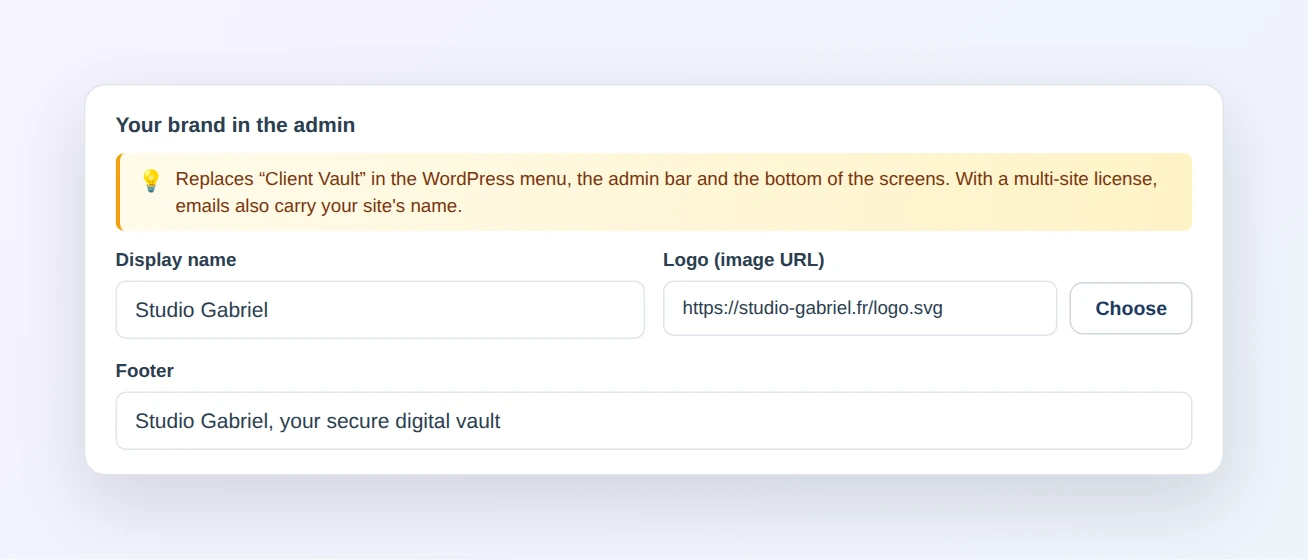
For an agency or a consultant who equips their clients, it’s your tool they see. This customization is included in multi-site licenses.
Your documents follow you, even to a new host
Every document is encrypted with a key that belongs to your site. This key lives apart, in a hidden file. So a regular backup doesn’t always take it along.
Now you download it in one click from the Security tab. After a move, you put it back. Client Vault checks that it opens your documents before installing it.
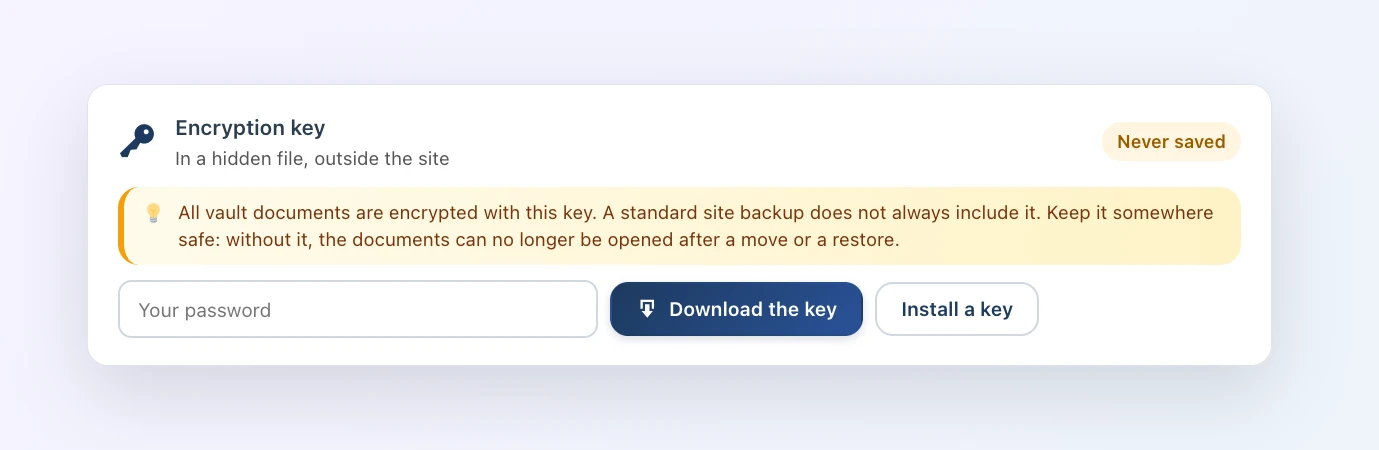
As long as the key hasn’t been saved, a small reminder offers to do it.
A guided start from the moment you install
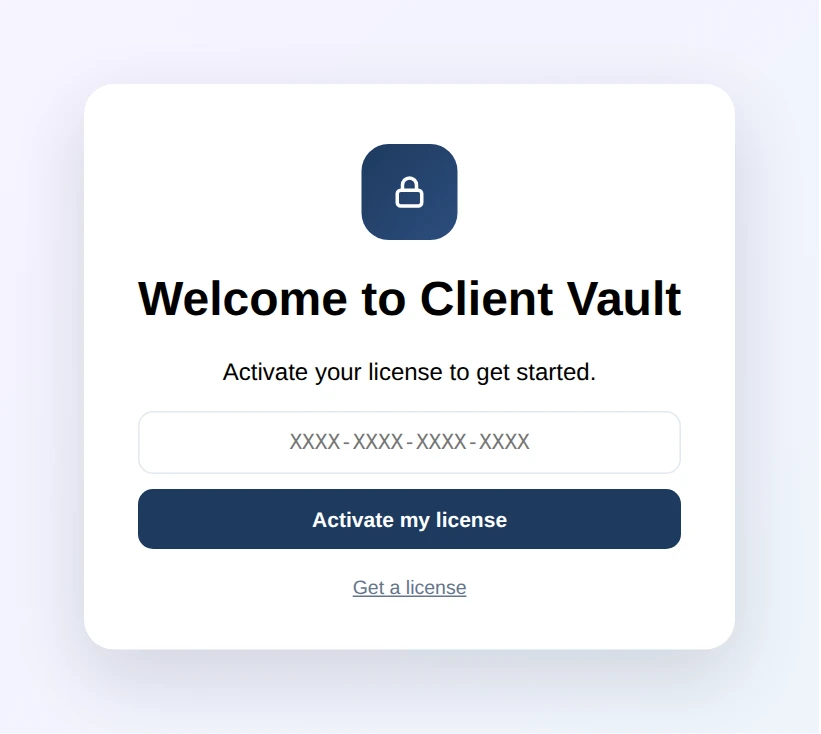
On activation, Client Vault opens on its own with a welcome screen. You paste your license key, then the wizard walks you through to your first client, in a few minutes.
Keep everything or erase everything, you choose
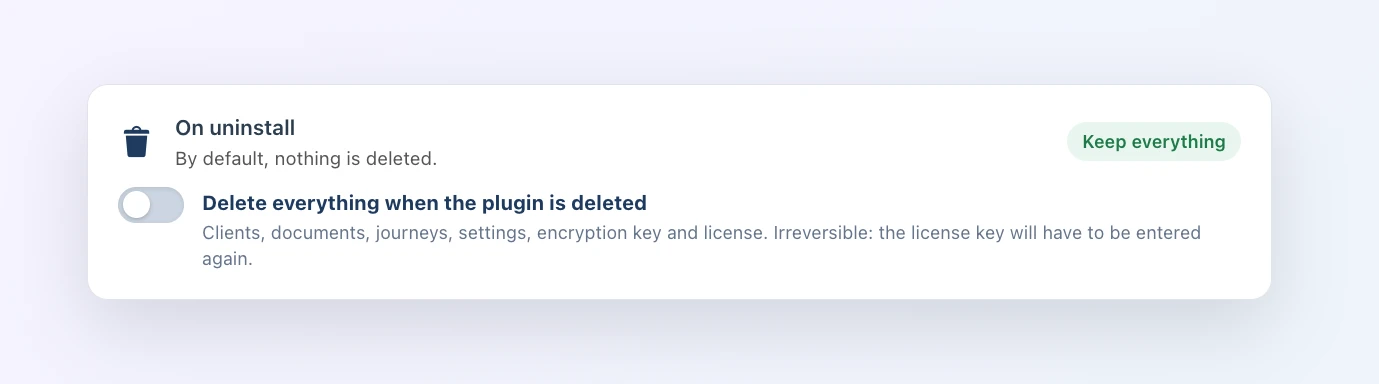
By default, deleting the plugin leaves everything in place. Your clients, your documents, your journeys, your settings and your license stay put.
The day you really want to start from scratch, a new switch takes care of it: “On uninstall”, in the Security tab. Booking Leads and FunnelCart work the same way. From one plugin to the next, you keep your bearings.
How to move to Client Vault 20.36
Already using Client Vault? The update is waiting in your WordPress admin. Your data and settings stay in place, and the update is included in your license. Just remember to download your key right after: it takes a minute.
Every new feature is shown screen by screen in the full article on clientvault.pro.
Client Vault 20.36
Every new feature, in pictures
The full article shows you every screen of this version.
- Your brand in the admin
- Encryption key in one click
- Welcome screen
- “On uninstall” setting
To go further: open the Client Vault demo, ready in a few seconds, or read about version 20.33 and the new Client Vault website. On the Sdravobiz side, find the current offers, the latest Booking Leads update, the FunnelCart one, the Client Vault group and La Taverne, the free community where we talk about it.
Frequently asked questions
What is Client Vault?
Client Vault is a secure digital vault for WordPress. Your clients find their documents, records, links and journeys there. Everything is encrypted and stays on your server, in the country you choose.
Is the 20.36 update included in my license?
Yes. All updates are included in your Client Vault license.
Who can show their own brand?
Customizing the name, logo and emails is included in multi-site licenses. With a single-site license, Client Vault keeps its name.
Where do I download my encryption key?
In the Client Vault settings, Security tab, “Encryption key” card. Click “Download the key” and confirm with your WordPress password.
What happens to Client Vault if I delete the plugin?
By default, everything stays in place: clients, documents, journeys, settings and license. To erase everything, turn on “On uninstall” in the Security tab.
How much does Client Vault cost?
All the offers are on the pricing page.