


I’ll be straight with you: I couldn’t wait to ship this one.
Fluent Community just released a feature many of you had been asking for. And Client Vault supports it right now, with version 20.33. If you run a community or a private group, you’re going to love it.
Let me walk you through it, screenshots included.
Space pages, the new native feature in Fluent Community
Until now, adding a page to a space meant installing an extra plugin. It worked. But it was one more thing to install and keep an eye on.
Fluent Community now does it on its own. In every space, in every group, you can create extra pages right inside its editor. A resources page. A welcome page for new members. A page just for your clients.
Your members have everything at hand, in one place. They stay in your community, and that’s exactly what you want.
Your clients’ vault, right inside your community
This is where Client Vault comes in. Add the Client Vault block to a space page, and your clients get their full vault: their dashboard, their documents, their journey, messaging and calendar.
The vault takes the full width and follows Fluent Community’s page templates. Even the scrollbar stays out of the way. The result: it looks like it was always there.
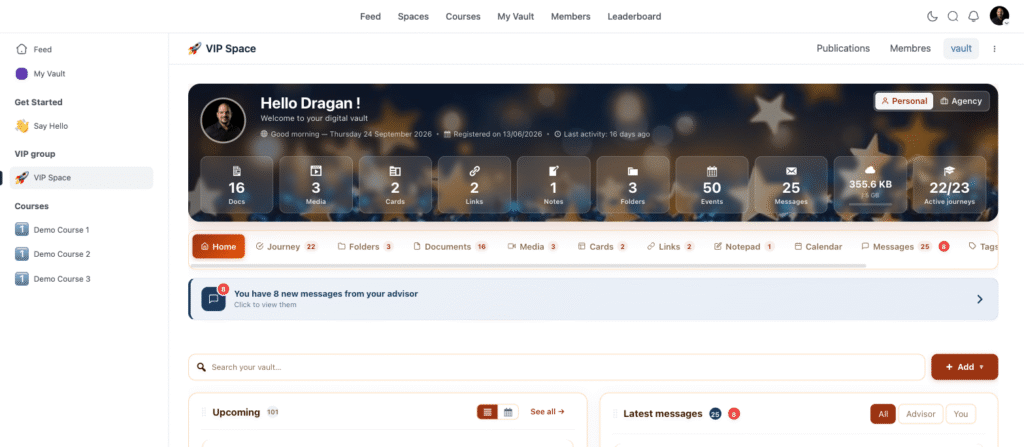
Links inside the vault stay in the space. Your clients move from their documents to their messages without ever leaving the community.
Add the block in seconds
Open your space page and type “vault” in the block search. The Client Vault block shows up with its logo. Drop it in: the editor already shows you the real vault, before you even publish.
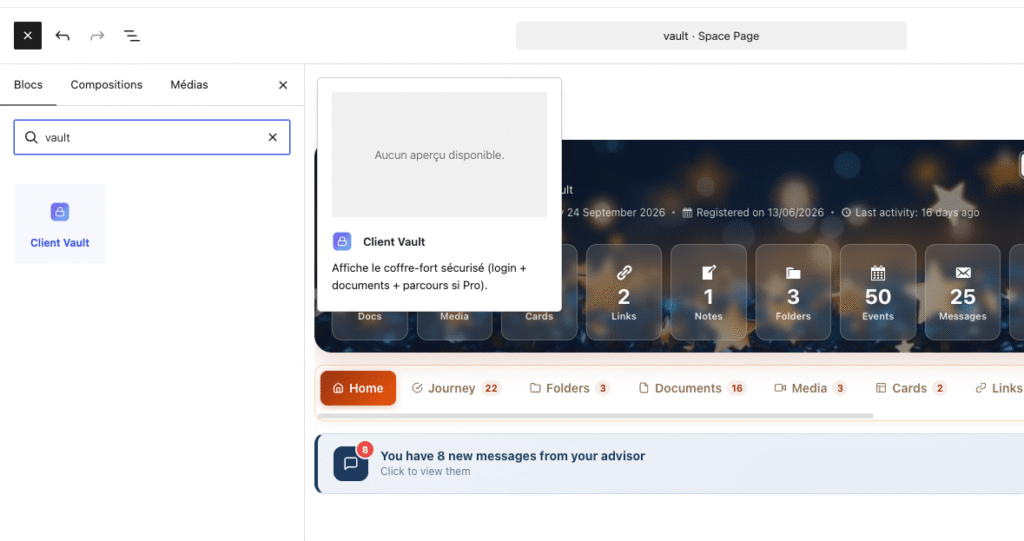
Had pages where the block showed as “unsupported”? They fix themselves when you open them. Nothing to redo.
Your data stays with you
All of this runs on your own WordPress. Your clients’ documents stay on your server, and no outside service ever sees them. That’s been the Client Vault principle since day one.
What else version 20.33 brings
Fluent Community is the big news. The release has a few quieter improvements too, and they’ll save you time every day.
One tab in FluentCRM
In the FluentCRM contact record, the client’s whole vault now fits in a single “Client Vault” tab. Their documents, what they did in their vault, your messages. You follow everything without leaving your CRM.
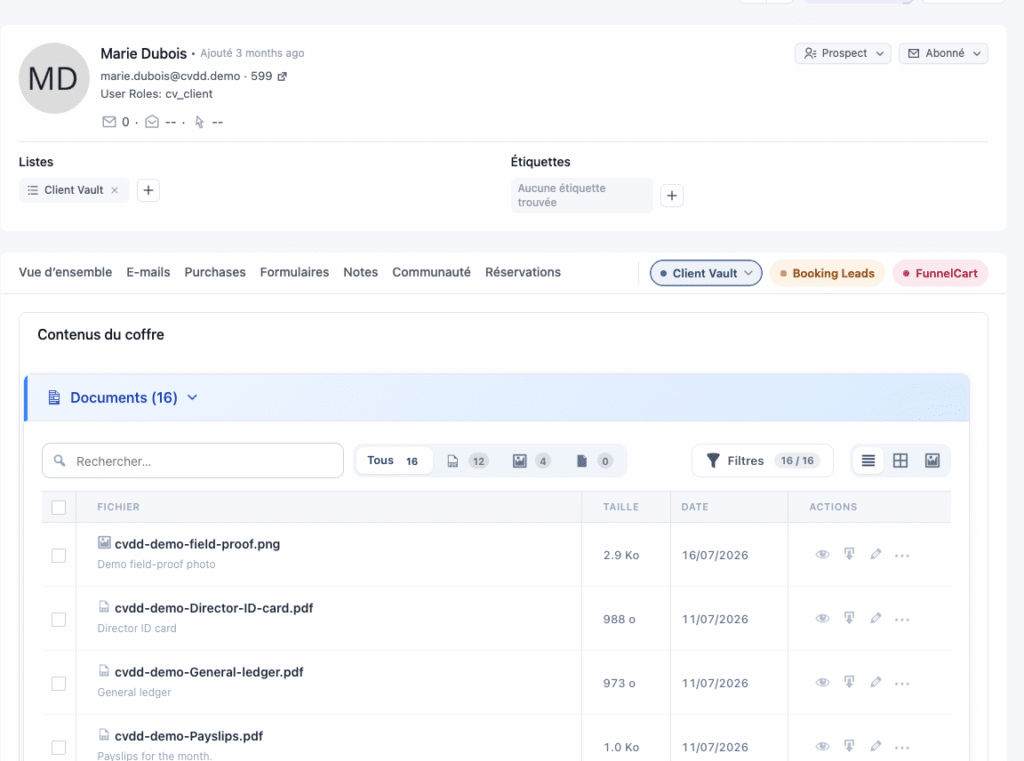
The tab shares the same style as the BookingLeads and FunnelCart tabs, my other plugins. Your contact record stays clean, even when several tools add their information.
Every client in their own language
Your clients see their vault in their own language. And your other pages load lighter.
Stress-free updates
When you run an update, a full-screen view takes over. You see each step and what’s new in the release, then you’re taken back to your dashboard. You can also turn on automatic updates from the Plugins page.
The new License screen shows your plan, your key, its expiry date and your update status in one view.
Client Vault now has its home on Sdravobiz
Some news I’m happy about: the Client Vault store, licenses and support now all live here, on Sdravobiz. Your invoices, keys and downloads are waiting in your Sdravobiz account.
Why is everything here now? I explained it in the article about Boudala Business becoming Sdravobiz. One account for all my software is simpler for you.
How to update to version 20.33
It’s quick. Go to Plugins, then click “Update” on the Client Vault row. The new screen guides you all the way.
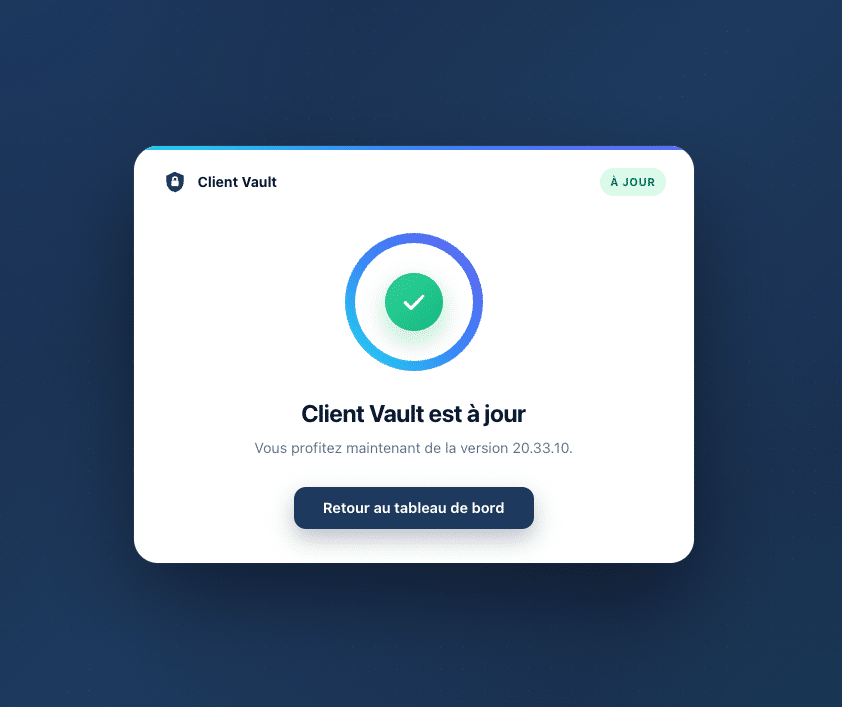
Your data and settings stay in place. Nothing to set up again.
Don’t have Client Vault yet? All the plans are on the Sdravobiz pricing page. And to chat with other users, come find me in La Taverne, our community. It runs on Fluent Community too.
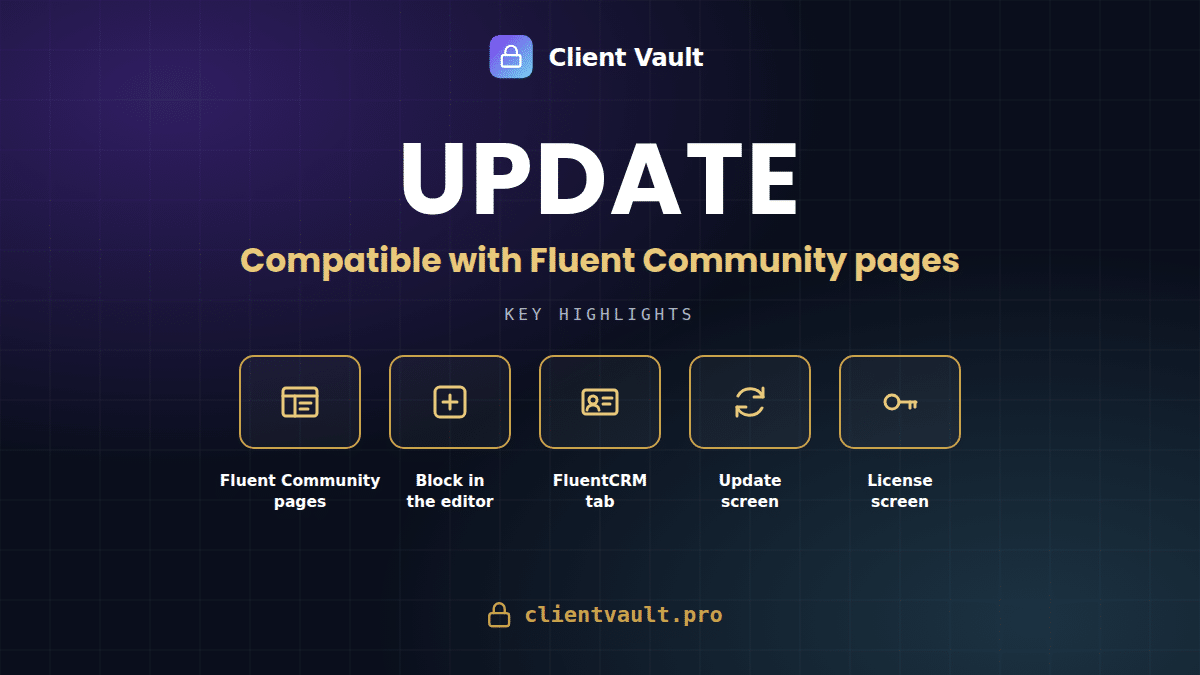
Client Vault 20.33
Every new feature, in pictures
The full article shows you every screen, step by step. Plus the settings for WordPress agencies.
- Space pages
- FluentCRM tab
- Update screen
- License screen
Frequently asked questions
What is a space page in Fluent Community?
It’s a page you add directly inside a space or a group of your community, using the Fluent Community editor. No extra plugin needed.
How do I display Client Vault in a space page?
Update Client Vault to version 20.33, open the space page and add the Client Vault block. Type “vault” in the block search to find it.
Does the 20.33 update change my data?
No. Your data and settings stay in place.
Where are my clients’ documents stored?
On your own WordPress server. No outside service has access to them.
Does Client Vault work without Fluent Community?
Yes. The vault works on any page of your site. Space pages are one more option.
Where do I manage my Client Vault license?
In your Sdravobiz account. You’ll find your licenses, invoices and support there.